Tuesday, January 31, 2017

Google Classroom


Google Classroom, is currently being used in both Grade 4 and 5 at my school; it is a wonderful feature of the Google Apps for Education.  

From iTunes, "Classroom helps teachers save time, keep classes organized, and improve communication with students. It is available to anyone with Google Apps for Education, a free suite of productivity tools including Gmail, Drive and Docs."

Classroom is designed to help teachers create, collect, and grade assignments paperlessly, including time-saving features like the ability to automatically make a copy of a Google Document for each student. It also creates Drive folders for each assignment and for each student to help keep everyone organized.

Students can keep track of what’s due on the Assignments page and begin working with just a click. Teachers can quickly see who has or hasn't completed the work, and provide direct, real-time feedback and grades right in Classroom."

I do not recommend Classroom for the lower grades B-2 but if you're interested regardless of what grade you teach please do reach out to Grades 4 or 5 or myself with questions.


Tuesday, January 24, 2017


EDPuzzle is a tool that I recently read about and have not yet had a chance to test it out myself but I wanted to share with you all as I know some of you show videos to your students. EDPuzzle allows you to add your voice and text questions to educational videos.

On "chance you can search for educational videos and or upload your own videos to use as the basis of your lesson. chance has an online classroom component that you can use to assign videos to students and track their progress through your video lessons. Within EDPuzzle's editor you can select portions of videos for students to watch. EDPuzzle offers the option to share your videos to Google Classroom. In the videos embedded below I demonstrate how to use the main features of EDPuzzle." -EdTechTeacher

Saturday, January 21, 2017

Real vs Fake


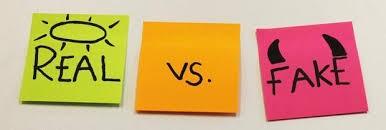
Back in 2015 before all the crazy claims of public figures about news being fake Free Technology for Teachers did a write up on Real vs Fake.  Last year in Grade 5 and again this fall we talked about this very thing.  Typically Real or Fake lessons revolve around images and learning to look carefully and critically at images we see online and in print.  This is a very hot topic these days as with growth in use of social media it becomes more challenging to discern what is real and what is fake. 

What about when we come across claims that have professionals (or parents) backing them?  How do we and our students know what is real? Sites like Snopes are helpful for checking on claims that seem too good to be true. Looking for vetted information or notations is another piece, sites like Wikipedia once a site for students to avoid is now a great place to help them understand what digital citations and references look like.  

What other tips and tricks do you have for helping your students determine real vs fake?


Tuesday, January 17, 2017

Bouncy Balls noise app


Bouncy Balls is a FREE online tool to help students see the noise level in the classroom.  The more noise there is the more the balls bounce.  You can adjust the sensitivity and the number of balls.  If the sensitivity is turned up to the max even soft talking will generate a "TOO NOISY!" The balls can also be changes into emojis, eyeballs or bubbles.

Thursday, January 12, 2017

Countable


I'm really excited to share this app with you all. Are you looking for an easier way to have your voice heard by your representatives? There is an app for that, Countable. I signed up for this app yesterday and I'm hooked! I have had some positive feedback from friends that have trie it out as well. 

This app is not for our students for us adults who are looking to make a difference but are not sure where to start.  You can start with Countable and make sure your representatives hear your voice.  If you want to check out the app pop by and take a look at mine. Wired also did a write up on it recently.

Wednesday, January 11, 2017

What to do with old Technology?


What to do with old Technology?

Many sites pay for your old phones, tablets and other devices, but they are not all created equally.    Amazon, Best Buy and Walmart will give store credit for your old devices but wouldn't you rather get cash, I know I would. Here are the sites they felt could be trusted and will get you the most money for your out dated technology.

Gazelle has been around for a while and is fairly popular, they have paid more than 200 million dollars for devices since the mall began.  They send you a free box and shipping label and you get up to 30 days to decide to proceed. If your device is in better shape than they expected, they will pay you more than they quoted you. Gazelle accepts a wide range of Apple products as well as many Android devices.

MaxBack is similar to Gazelle, but they accept a wider variety of devices. Among other things, it will buy tables, smartwatches, fitness tracekrs, headphones, speakers and more.

Stopoint's best feature is speed. Stopoint pays via PayPal within 24 hours of receiving your device or they will mail a check within 3 days. They also purchase a wide variety of older hardware—this is one of the few technology trade-in sites that will buy cameras and lenses, as well as Sony PlayStation and Microsoft Xbox consoles. Stopoint also buys phones just like the others.

EcoATM With EcoATM you canget cash the same day! If you use one of their kiosks. There are thousands of EcoATMs across the U.S., often in shopping malls, there are 5 within 12 miles of CHS. They use cameras in the kiosk to determine the condition of your used smartphone, tablet or iPod. EcoATM offers tips for how to wipe your device beforehand, as well as an estimated payout. (Note: The Better Business Bureau has logged some EcoATM complaints, but those mostly pertain to the kiosks being used by phone thieves; not by customers who felt ripped off).